Switches, ports and optics
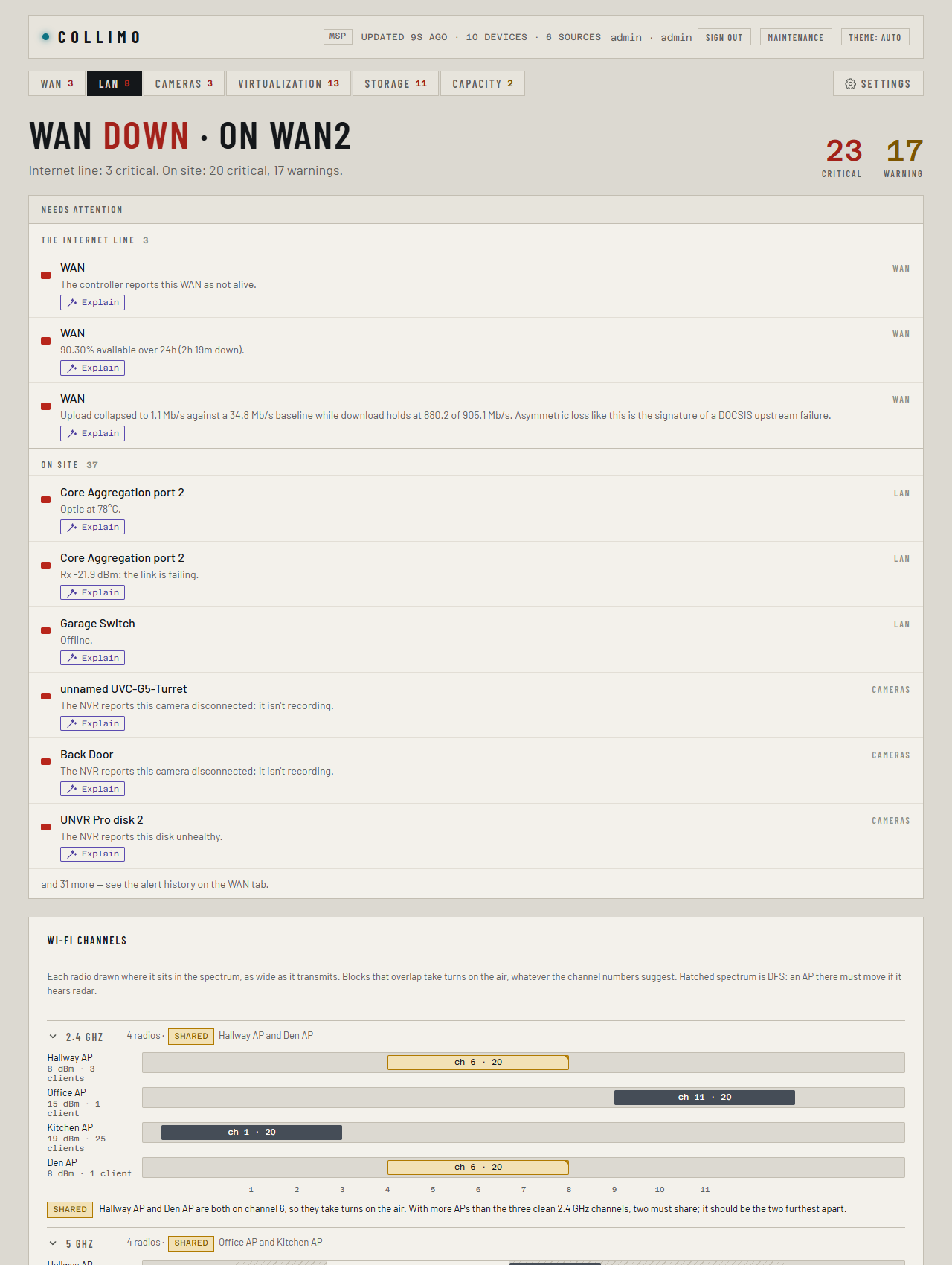
The LAN tab shows every switch, gateway and access point in your UniFi Network console, drawn as its front panel, with the faults the UniFi app mostly doesn't surface: errors climbing on a port, links that have slowed down, half duplex, and fibre optics running hot or dim.
Device rows
Each device is one row. Closed, it shows the name, model and firmware, its vitals (CPU, memory, temperature, fan, uptime), a strip of every port in its own colours, and a pill: ok, the number of alerts, or offline.
- A row with an alert opens by itself. Click a row to open or close it; your browser remembers that choice for each device.
- Expand all and Collapse all at the top open or close every row and forget the choices you made.
The faceplate
An open row draws the switch's front panel: odd ports on the top row, even ports on the bottom, fibre (SFP) cages split off to the right. A port on screen is where your finger goes on the rack.
| Colour | Means |
|---|---|
| Aqua | Fibre, link up |
| Slate | Copper, link up |
| Grey, unfilled | No link |
| Amber, with a corner flag | A warning: a slow link, half duplex, flapping, errors trickling up, or an optic getting marginal |
| Red | Errors climbing fast (1 a second or more), or an optic out of range |
The bar at the foot of each port is its speed, one segment per step: 100M, 1G, 2.5G, 5G, 10G and up. Colour never means speed.

Port detail
Click a port for its detail panel: link speed and duplex, the best in 30 days, when it moved to this speed, error and byte counters, PoE draw, and, for a fibre port, the optic's make, temperature, receive and transmit power.
On a port whose switch reports them, VLANs shows what it carries:
untagged 10 · tagged 20, 30, or all others tagged for a UniFi port
that allows every network. SNMP switches report them through Q-BRIDGE-MIB;
UniFi ports through their port profile, with each network's VLAN number.
Each alert on the port comes with what to check, such as "Clean the
connectors at both ends first". Below that is a graph of the port's errors
per second over the last six hours. It reads Not enough history yet for a
trend for the first few minutes after install. Press Close or Esc to
shut the panel.
Reserving a port
New in the next release
This is on the dev and qa builds now, and in the next release.
Keep a port for something planned, such as an uplink or a client's equipment, so capacity planning never counts it free when it checks adding a host.
- Sign in as an admin. Reserving is a paid feature.
- On the LAN tab, click the port.
- In its detail panel, type what it's kept for, such as uplink to core-b, planned, and click Reserve this port.
From the next poll the port has a dashed outline on the faceplate, its tooltip says reserved with your note, and its detail panel says who reserved it and when. Update changes the note; Free it takes the reservation off. Each is in Settings → Audit log.
A reserved port is never counted free, whatever its link. Reservations are kept in the settings store, so they're in a settings export. If the license lapses they stop showing and stop counting, and come back with it.
What raises a port or device alert
| Alert | When |
|---|---|
| Port errors climbing | Errors rose since the last poll. Critical at 1 a second. Stays up for 10 minutes after the last rise |
| Port flapping | 5 or more link drops in an hour (warning) |
| Link slower than usual | Linked slower than this port has run in the last 30 days (warning) |
| Half duplex | At any speed (warning). Usually one end is set to a fixed speed and the other to auto |
| Optic hot | Warning at 65 °C, critical at 75 °C |
| Optic signal low | Receive power warning at −14 dBm, critical at −20 dBm |
| Device offline, Device overheating | Critical |
| Chassis hot | Warning at 75 °C, critical at 85 °C |
| Fan high | 90% or more (warning) |
Error counters on a switch add up from its last reboot, so a big number on its own means nothing. Ferrule only alerts while they are rising.
Why a 100 Mb/s printer doesn't turn amber
A slow link is judged against the port's own last 30 days, not against what the switch can do. A printer that has only ever run at 100 Mb/s is fine. A port that ran at 1 Gb/s yesterday and 100 Mb/s today has usually lost a pair in the cable. The first speed Ferrule sees on a port is its starting point, so it can't warn about a port it has never seen run faster.
Computers that sleep
A computer asleep with wake-on-LAN drops its port to 100 Mb/s, which would warn every night. When a port has dropped to 100 Mb/s and come back twice in 30 days, its slow-link alert offers It sleeps: ignore 100 Mb/s here, in Needs attention and in the port detail.
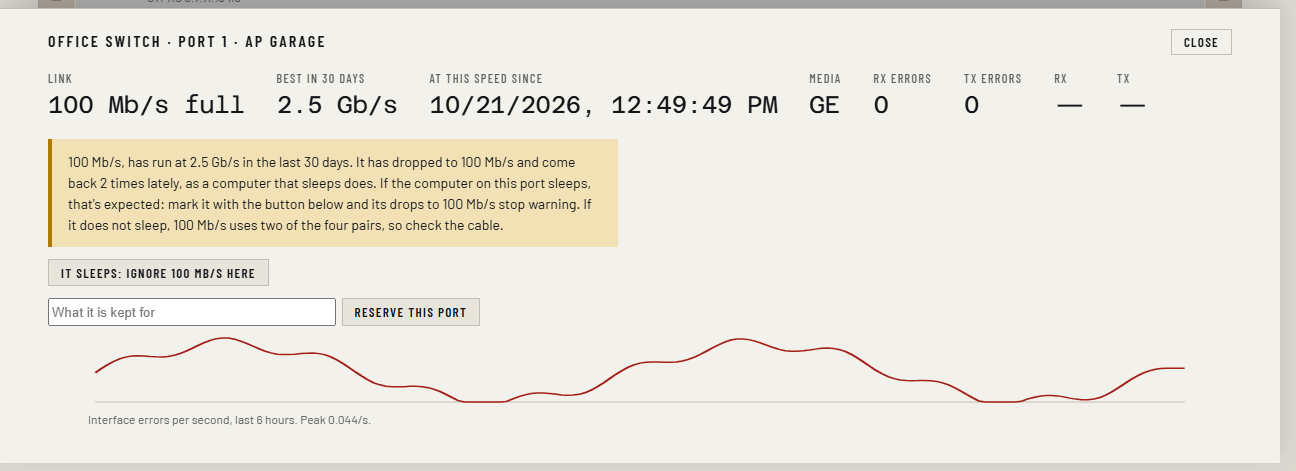
Clicking it, in any edition, adds the port to PORT_SLEEPS under
Settings → Stack environment. Copy the line into the stack and redeploy.
You can also write it yourself, as the switch's MAC and the port number:
PORT_SLEEPS=78:45:58:aa:bb:cc/12, 78:45:58:aa:bb:cc/14
- Open the
ferrulestack and find Environment variables. - Add or change the lines. In Advanced mode you can paste several at once.
- Click Pull and redeploy.
- Open
.envin the folder where you clonedferrule-deploy. - Add or change the lines.
- Run
docker compose up -din that folder.
After that, drops to 100 Mb/s or lower on those ports stop warning. A drop to anything faster, such as 10G coming back at 1G, still warns. With a license or the trial, the click saves at once with no redeploy: see Alert thresholds.
Fibre optics
Fibre ports show the optic's temperature and receive power, and alert at the levels in the table above. If a fibre port's detail says This platform is not reporting module diagnostics for this cage, the hardware isn't sending the readings. That is common on gateway SFP+ ports: see What your hardware won't report.
Colours for your own eyes
Settings → Display sets the levels at which readings turn amber or red, in your browser only. They can add highlighting but never hide or change an alert.
If something's wrong
| What you see | Why, and the fix |
|---|---|
| No LAN tab | UNIFI_ENABLED=false is set |
| An error message instead of devices | Ferrule can't read the console. The message says why; see UniFi Network |
| A switch shows offline | The controller reports it offline. It has no readings until it reconnects |
| No error graph, History unavailable | VictoriaMetrics isn't reachable: see History and graphs |
More in Troubleshooting.