VMware vCenter and ESXi
This page gets Ferrule reading vCenter 7 or 8 with a read-only account. ESXi hosts are read through the vCenter that manages them.
What Ferrule reads: every host's connection, maintenance mode, CPU, memory, uptime and ESXi build; every datastore's size, free space and reachability; every VM's power state, with CPU and memory for the busiest fifteen; and vCenter's own alarms. What it can't: it changes nothing, and it adds no thresholds of its own: alerts are vCenter's alarms.
Make the read-only account
In the vSphere Client, signed in as an administrator:
- Go to Administration → Single Sign On → Users and Groups → Users,
choose the domain
vsphere.local, and click Add. - Username
telemetry, and a long password. vCenter's default password policy asks for upper and lower case, a digit and a symbol, and allows at most 20 characters. - Go to Administration → Access Control → Global Permissions and click Add.
- User
[email protected], role Read-only, with Propagate to children ticked.
More privileges, for the Business features
New in the next release
This is on the dev and qa builds now, and in the next release.
The Read-only role reads everything on the dashboard. Two features need one read-only privilege each that Read-only lacks:
| Privilege | What it unlocks | Without it |
|---|---|---|
| Global → Licenses | The license list on the vCenter panel, expiry warnings, and the license check when adding a host | The panel says why it can't list them |
| Datastore → Browse datastore | Orphaned disks: disk files no VM uses | The inventory names each datastore it couldn't search |
Neither can change anything: one lists datastores' files and can't move or delete them, the other reads licenses and can't assign them. To grant them:
- Administration → Access Control → Roles, select Read-only, and
Clone it as
Ferrule. - Edit
Ferruleand tick Global → Licenses and Datastore → Browse datastore. - In Global Permissions, change
[email protected]to theFerrulerole, with Propagate to children ticked.
Enter it in the setup wizard
On the wizard's What you have page, set VMware vCenter to the number you have. On its page:
- Name: what you call it, such as
vcsa. - Address: the vCenter itself, with no path:
https://vcsa.example.com. - User:
[email protected]. - Password: the password from step 2.
- Leave Verify the certificate off, unless the Docker host trusts vCenter's certificate. Most vCenters use their own certificate authority.
- Click Test.
When it works you see ✓ Connected: and what it found, such as
4 of 4 hosts connected, 120 of 150 VMs on, 6 datastores. Open alarms are
listed underneath.
Editing the stack by hand
Each source takes a numbered slot, SOURCE_1 to SOURCE_8, with its
secret beside it. Write any $ in the password as $$.
SOURCE_3=vmware https://vcsa.example.com name=vcsa [email protected]
SOURCE_3_SECRET=<the password>
Settings → Add a source writes the first line for you. See Every variable.
Where it shows up
vCenter gets a panel on the Virtualization tab. Settings → Sources lists it as polling; for the first minute it says waiting for first poll.
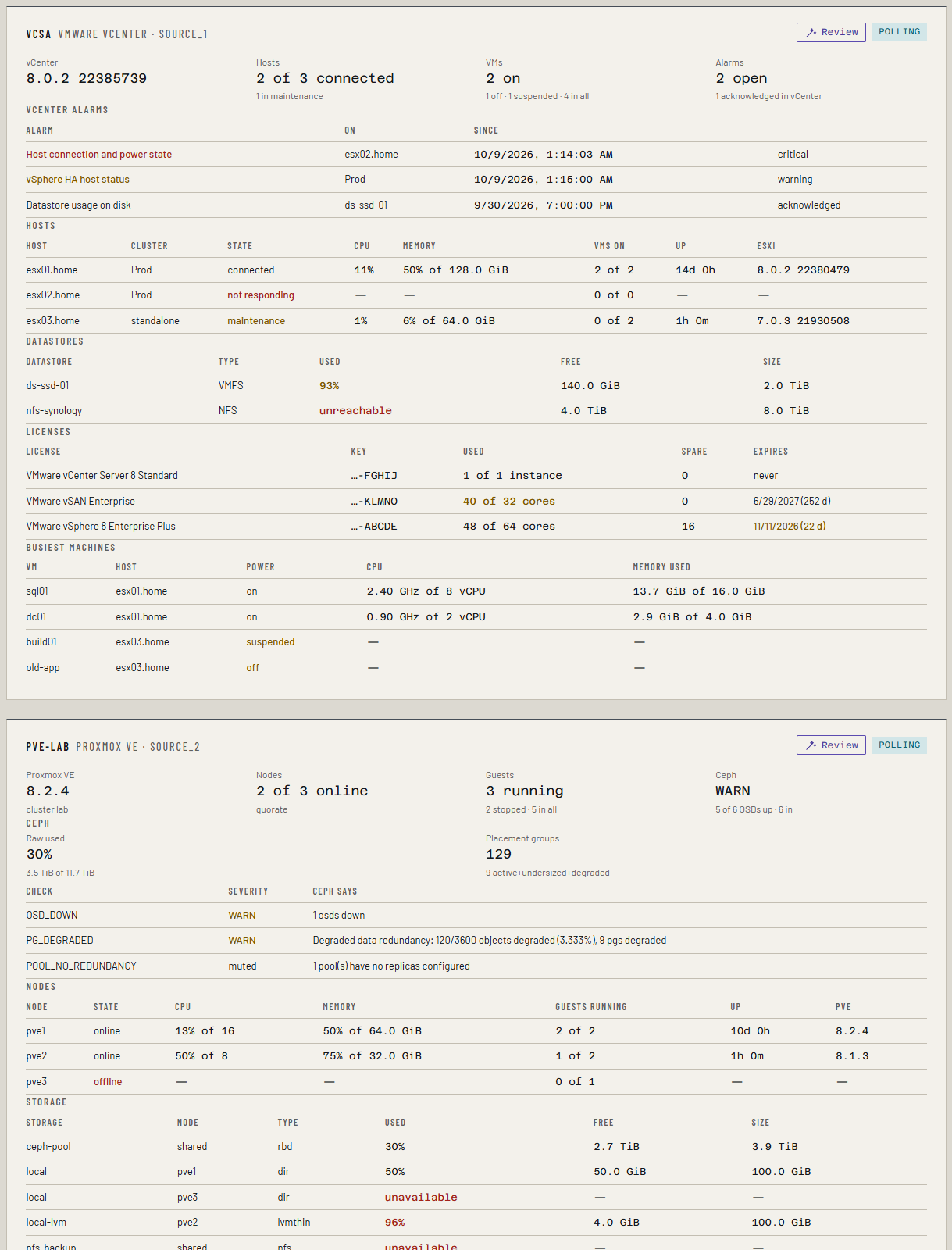
Each triggered alarm nobody has acknowledged becomes an alert: red is critical, yellow is a warning. Tune the alarms in vCenter as usual. Acknowledging an alarm in vCenter clears it in Ferrule.
Licenses
New in the next release
This is on the dev and qa builds now, and in the next release.
The vCenter panel lists every license vCenter holds, read once an hour:
| Column | What it shows |
|---|---|
| License | Its name, such as VMware vSphere 8 Enterprise Plus |
| Key | Only the last group, such as …-ABCDE. A key is never kept whole |
| Used | Units assigned of the units it holds (cores, CPUs, instances or VMs), or unlimited |
| Spare | What's left |
| Expires | The date and days left, or never |
The evaluation license every vCenter keeps isn't listed, and never alerts: vCenter alarms on any host still using it.
It raises Platform license expiring, expired or over-used
(platform_license):
| When | Level |
|---|---|
| A license expires within 30 days | warning |
| It has expired | critical |
| More is assigned than it holds | warning |
What else the inventory reads
New in the next release
This is on the dev and qa builds now, and in the next release.
Each inventory also reads every host's network ports, for the Host NICs sheet and for planning where a new host plugs in:
- Physical NICs (
vmnic0and so on): MAC address, driver, and link speed while the link is up. - VMkernel ports (
vmk0and so on): their port group, address and MAC. These are the host's own addresses on the Hosts sheet.
With Browse datastore, it lists every .vmdk on each accessible
datastore and keeps those no registered VM uses: see
Reclaim and orphaned disks. Snapshot
deltas, content library items, first-class disks (fcd/) and vSphere
Replication files are never counted.
If something's wrong
| What you see | What to do |
|---|---|
| vCenter refused the login for [email protected]: wrong user or password | Check the password, and that the user has @vsphere.local on the end. |
| vCenter: the reply is not SOAP; is the address the vCenter itself? | Use the plain address, without /ui or any other path. |
| vCenter: no service content; is the address the vCenter itself? | Same as above. |
| Licenses not read: the account may not read licenses: give its role Global → Licenses | Add the privilege, as above. |
| ds-name: can't be browsed for orphaned disks | Add Browse datastore, as above. |
| ds-name: not accessible, so not searched for orphaned disks | vCenter reports the datastore inaccessible. Fix it in vCenter. |
| Connected, but no hosts or VMs | The global permission is missing, or Propagate to children wasn't ticked. |
| Nothing answered at that address and port. | Check the address. vCenter answers on 443. |
| The certificate isn't trusted. | Untick Verify the certificate. |
See Troubleshooting for more.