Synology DSM
This page gets Ferrule reading your Synology NAS.
What Ferrule reads: model, DSM version, uptime, CPU, memory and temperature; every volume's status, RAID type and use; every drive's status, SMART verdict and temperature. What it can't: it changes nothing, and it doesn't open any shared folder.
DSM has no read-only role that can see disk health, so Ferrule uses an administrator account that is denied every app and folder.
Make the account
In DSM, go to Control Panel → User & Group → User:
- Click Create. Name
telemetry, and a long random password. - On Join groups, tick administrators. DSM shows disk and volume health only to administrators.
- On Assign shared folders permissions, tick No access for every folder.
- On Assign application permissions, tick Deny for every application.
- Leave 2-step verification off for this account.
2-step verification must be off
Ferrule signs in with no person there to type a code. If Control Panel → Security → Account enforces 2-step verification for administrators, exempt this account, or the sign-in fails.
Enter it in the setup wizard
On the wizard's What you have page, set Synology DSM to the number you have. On its page:
- Name: what you call it, such as
ds920. - Address: with the HTTPS port:
https://192.168.1.30:5001. - User:
telemetry. - Password: the password from step 1.
- Leave Verify the certificate off, unless DSM has a trusted certificate.
- Click Test.
When it works you see ✓ Connected: and what it found, such as
2 volumes, 4 disks, all healthy.
Editing the stack by hand
Each source takes a numbered slot, SOURCE_1 to SOURCE_8, with its
secret beside it. Write any $ in the password as $$.
SOURCE_4=synology https://192.168.1.30:5001 name=ds920 user=telemetry
SOURCE_4_SECRET=<the password>
Settings → Add a source writes the first line for you. See Every variable.
Where it shows up
The NAS gets a panel on the Storage tab. Settings → Sources lists it as polling; for the first minute it says waiting for first poll.
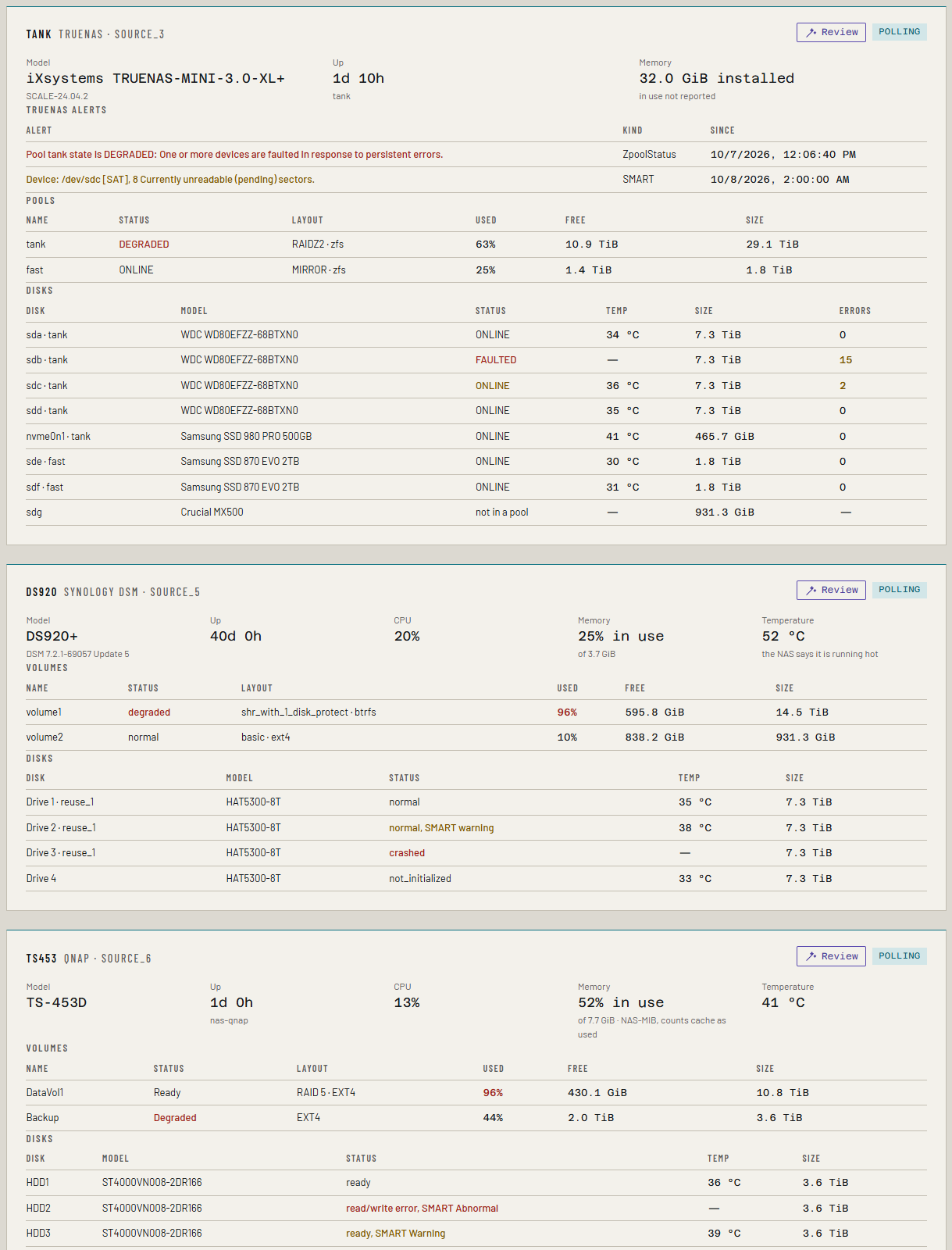
It alerts on a volume degraded or crashed, a drive DSM flags or whose SMART check has failed, a volume nearly full (90% is a warning, 95% is critical), and DSM saying the box is running hot.
Pool layout, for adding disks
New in the next release
This is on the dev and qa builds now, and in the next release.
Ferrule reads each volume's storage pool: its RAID type (SHR, SHR-2, RAID 5, 6, 1, 10 or Basic) and the size of every disk in it.
The add disks what-if then works out what more disks give. SHR keeps the largest disk's worth for redundancy (SHR-2 the largest two), so one disk bigger than your largest adds only as much as your largest, until a second arrives. RAID 5 and 6 count every disk at the smallest's size.
If something's wrong
Each of these starts Synology refused the sign-in:
| What follows | What to do |
|---|---|
| wrong user or password | Check both. The user is telemetry, not telemetry@.... |
| the account uses 2-step verification, which the API cannot answer | Turn 2-step verification off for this account. |
| 2-step verification is enforced for this account; exempt it | Exempt it under Control Panel → Security → Account. |
| the account is disabled | Enable it under Control Panel → User & Group. |
| the account is not allowed to sign in | Check the account's application permissions. |
| DSM has blocked this address after too many failed sign-ins | Unblock the Docker host's address in Control Panel → Security → Protection, under Auto Block, then fix the password. |
Others:
| What you see | What to do |
|---|---|
| Synology: ... needs an administrator; add the account to the administrators group | Do step 2. |
| Nothing answered at that address and port. | Add the port, :5001. |
| The certificate isn't trusted. | Untick Verify the certificate. |
See Troubleshooting for more.