UniFi Protect
This page gets Ferrule reading your cameras and your recorder (NVR).
What Ferrule reads: every camera's state, the recorder's disks and their health, its CPU temperature, and each camera's throughput. Disk health and temperatures need a local admin account: the API key alone gives only the camera list.
Protect on the same console
If one box runs both Network and Protect, such as a UDM Pro or a Cloud Gateway, there is nothing more to make. Ferrule uses the key and account from UniFi Network. In the wizard, choose On the same console under UniFi Protect cameras.
If you don't run Protect, choose I don't use Protect.
Protect on a separate UNVR
A UNVR is a separate UniFi console with its own accounts. The gateway's API key and admin don't work on it, so make both again, on the UNVR:
- Open
https://<UNVR address>in a browser and sign in. - Go to Settings → Control Plane → Integrations → Create API Key. Name
it
ferruleand copy the key now. - Go to Settings → Admins & Users → Add New Admin.
- Tick Restrict to Local Access Only, username
telemetry, a long password, role Read Only (or View Only). - Leave MFA off for this account.
Make them on the UNVR, not the gateway
An account with the same name on the gateway is a different account. The UNVR won't accept it.
Enter it in the setup wizard
On the What you have page, choose On a separate UNVR. The wizard adds a Protect page:
- Address: the UNVR's address, such as
https://192.168.1.4. - API key, Local admin username and Local admin password: the ones you made on the UNVR.
- Click Test.
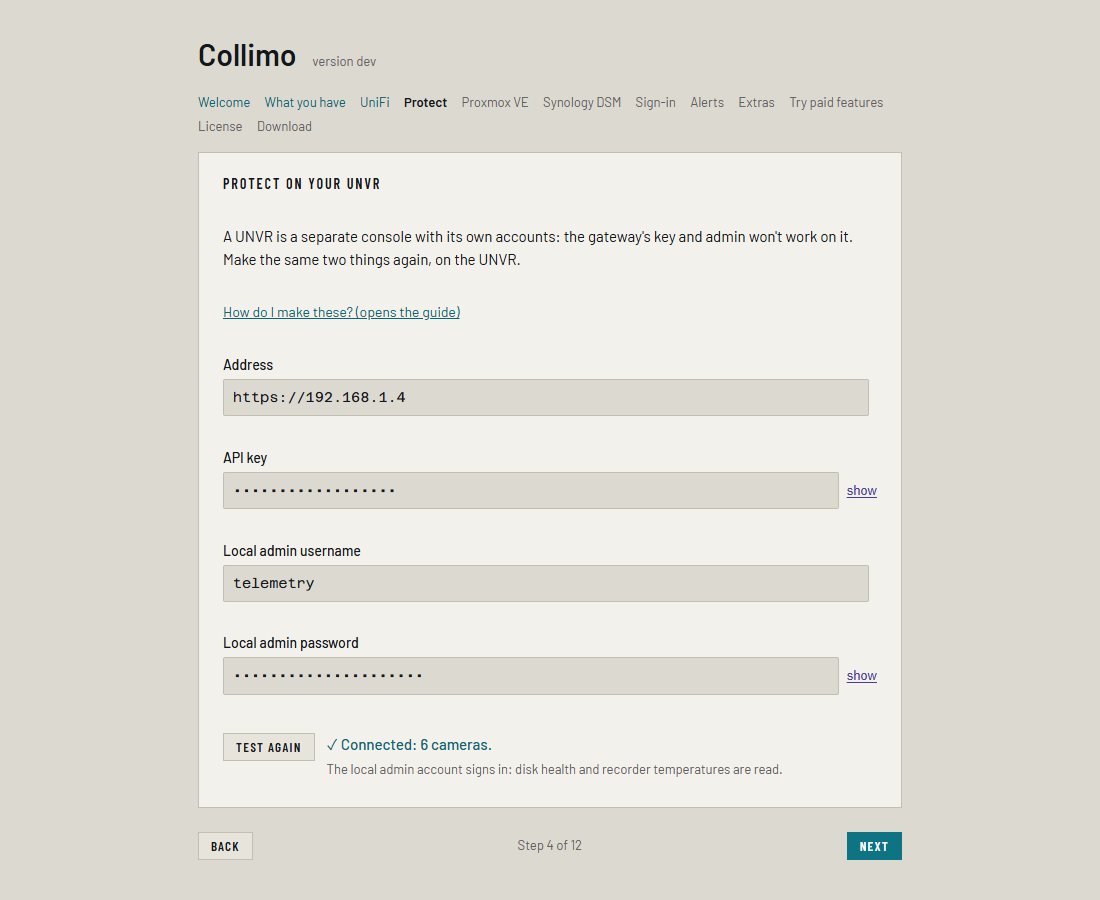
When it works you see ✓ Connected: 6 cameras. (your own count) and The local admin account signs in: disk health and recorder temperatures are read.
Editing the stack by hand
For a separate UNVR the wizard writes these lines. Write any $ as $$.
PROTECT_HOST=https://192.168.1.4
PROTECT_API_KEY=<the UNVR's key>
PROTECT_USERNAME=telemetry
PROTECT_PASSWORD=<the UNVR account's password>
With Protect on the same console, leave all four out.
PROTECT_ENABLED=false turns Protect off. See
Every variable.
Where it shows up
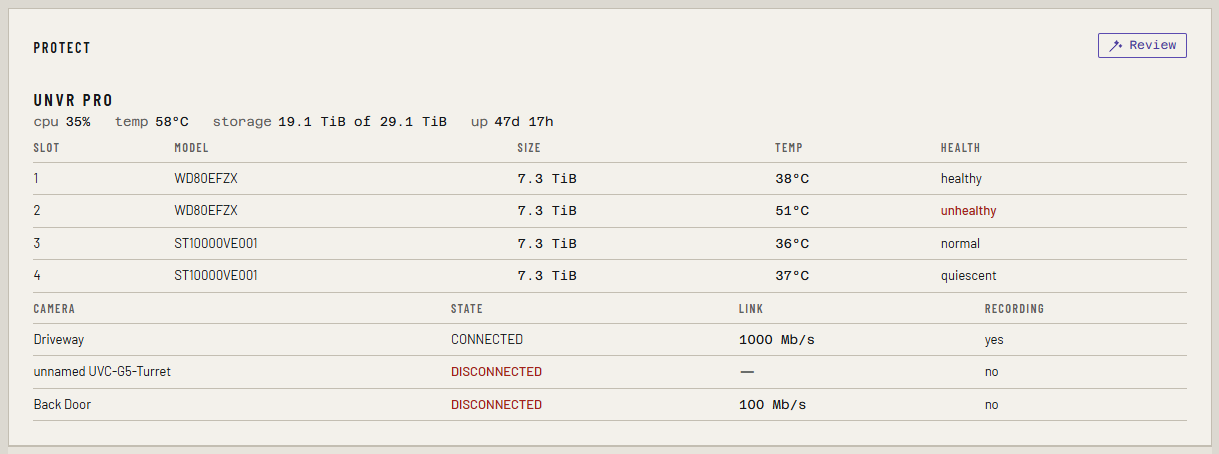
A Cameras tab appears with the recorder, its disks and every camera. With a separate UNVR, Settings → Sources also lists UniFi Protect with the UNVR's address. More in Cameras and the NVR.
If something's wrong
| What you see | What to do |
|---|---|
| ✓ Connected, then No local admin account: disk health and recorder temperatures need one. | Fill in the UNVR's local admin too. |
| ✓ Connected, then Disk health and recorder temperatures could not be read with the local admin account | The account was refused. Check it was made on the UNVR, is local-only, and has MFA off. |
| The console refused the login. | Same: a cloud account, MFA on, or an account from the gateway. |
The log says Protect is enabled on ... but has no credentials for it |
PROTECT_HOST is set but the key and account lines aren't. Add them, or set PROTECT_ENABLED=false. |
The Cameras tab says no username and password for ... |
Add PROTECT_USERNAME and PROTECT_PASSWORD. An API key alone can't read disk health. |
The Cameras tab says bootstrap is disabled |
Remove PROTECT_BOOTSTRAP=false from the stack, or add the account. |
The other messages, such as Nothing answered at that address and port, mean the same as on UniFi Network. See also Troubleshooting.