UniFi Network
This page gets Ferrule reading your UniFi gateway, switches and access points. You need about ten minutes and an admin sign-in on the console.
What Ferrule reads: fan speeds, temperatures, per-port errors and link speeds, fibre optic (SFP) readings, PoE draw, Wi-Fi radios, both WAN links, a cable modem's state, speed tests and outage history. What it can't: some hardware never reports certain readings, such as optics on a gateway's SFP+ ports. See What your hardware won't report.
Make the API key and the read-only account
Ferrule needs two things from the console: an API key for the basics, and a local read-only admin for everything else (fans, port errors, optics, outages). Make both on the console that runs UniFi Network: a UDM, UDM Pro, UDM-SE or Cloud Gateway.
- Open
https://<console address>in a browser, on your network, and sign in. Don't use the mobile app or unifi.ui.com. - Go to Settings → Control Plane → Integrations → Create API Key. Name
it
ferruleand copy the key now: UniFi shows it only once. - Go to Settings → Admins & Users → Add New Admin.
- Tick Restrict to Local Access Only. This makes a local account: one that lives on the console, not a UniFi cloud (ui.com) login.
- Username
telemetry, and a long password. - Role Read Only (some releases call it View Only).
- Leave MFA (two-factor sign-in) off for this account.
A cloud login or MFA won't work
Ferrule signs in with no person there to type a code, so the account must be local, with MFA off. It is read-only and local-only, so it can't change anything or be used from the internet.
Enter it in the setup wizard
On the wizard's UniFi page:
- Address: the console's address, such as
https://192.168.1.1. - API key: the key from step 2.
- Local admin username and Local admin password: from step 5.
- Click Test.
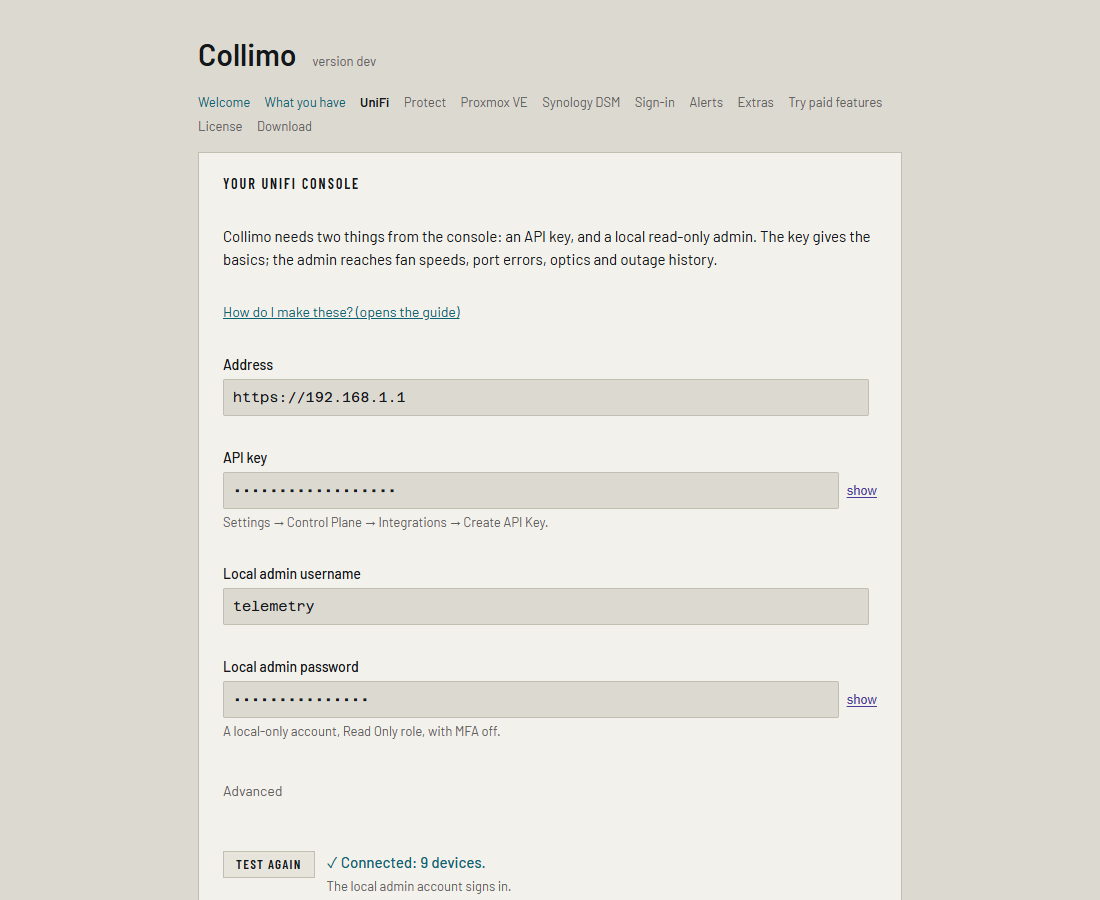
When it works you see ✓ Connected: 9 devices. (with your own count) and The local admin account signs in. underneath.
Under Advanced, change things only if they apply to you:
- Site name: only if you renamed your UniFi site from
default. - A self-hosted Network controller, not a UniFi console: tick it if you run the Network application yourself. Put its address and port in Address.
- Verify the certificate: only if the console has a trusted certificate.
To change it later, an admin can use Settings → Run setup again. See the setup wizard.
Editing the stack by hand
The wizard writes these lines for you. Write any $ in a value as $$.
UNIFI_HOST=https://192.168.1.1
UNIFI_API_KEY=<the API key>
UNIFI_USERNAME=telemetry
UNIFI_PASSWORD=<the password>
UNIFI_SITE, UNIFI_OS=false and UNIFI_VERIFY_TLS=true match the
Advanced options. See Every variable.
Where it shows up
- The WAN tab: your internet links, outages and the cable modem.
- The LAN tab: every switch and access point. Each switch opens to its front panel.
- Settings → Sources lists UniFi Network with how it signed in, such
as
API key.
What capacity planning reads
New in the next release
This is on the dev and qa builds now, and in the next release.
Beside the device list Ferrule already reads, it uses three more things the console sends, to work out where each host plugs in and what VLANs its ports carry:
| What | From | How often |
|---|---|---|
| Each port's MAC table | mac_table on each port in the device list |
Every poll |
| Each port's VLANs | The port's native network and tagged networks, with the site's networks (rest/networkconf) for their VLAN numbers. The default network is VLAN 1 |
Networks every ten minutes |
| LLDP neighbours | Each device's lldp_table |
Every poll |
| Wired clients, by MAC | The client list, already read for downstream alerts | Every five minutes, kept 30 days |
All of these are read as raw text and checked field by field, so a value of an unexpected type can't stop the rest of the device list being read. The MAC tables are kept inside Ferrule and not served to the dashboard. VLANs show in the port's detail panel.
If something's wrong
| What you see | What to do |
|---|---|
| The console refused the login. Check the password, that the account is local-only (not a UniFi cloud account), and that MFA is off for it. | Make the account again as in steps 3–7. MFA on, or a cloud account, is the usual cause. |
| ✓ Connected, then The local admin account was refused | The key works but the account doesn't. Same fix as above. |
| ✓ Connected, then No local admin account: fan speeds, port errors and outage history need one. | Fill in the username and password too. |
| The console's certificate isn't trusted. | Untick Verify the certificate. |
| The console answered with a web page, not data. | Use the console's own address, not a reverse proxy or unifi.ui.com. |
| Nothing answered at that address and port. | Check the address, and that it starts https://. |
| Ferrule couldn't reach the console from the Docker host: no answer. | A firewall or VLAN rule is blocking the Docker host. |
Once Ferrule is running, a failed read shows on the LAN tab in place of the
devices, and the container log has a line starting poll: network:.
Readings already on screen stay, marked stale. See
Troubleshooting.